
Who can use this feature?
Only the Application Owner role can use this feature.
What is it?
Insights adds an AI-generated analysis to every element of an entity type. On the element's Insights tab, users see one summary per perspective, each with a list of the sources it is based on. The analysis uses the element's title, abstract, description and tags.
As Application Owner, you decide what the AI looks at by configuring perspectives for each entity type. You can also add a Master Context that describes your organization, so the insights reflect your own priorities rather than a generic view.
Note: Insights needs to be activated by ITONICS and requires a license. Contact your Customer Success Manager for further assistance.
How does it work?
Activate Insights for an entity
- Go to Settings Wheel > Entity Configuration > Entity Configuration.
- Select the entity type and click the pen icon to open the edit page.
- Scroll down to the Enabled Modules/Features for this Entity section.
- Select the Insights checkbox and click Save.
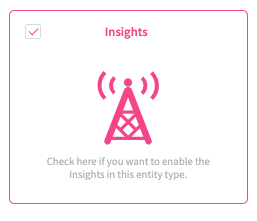
Once Insights is enabled, the Insights Configuration tab becomes available on the entity. It contains two sub-tabs: Perspectives Configuration and Master Context.
Configure perspectives
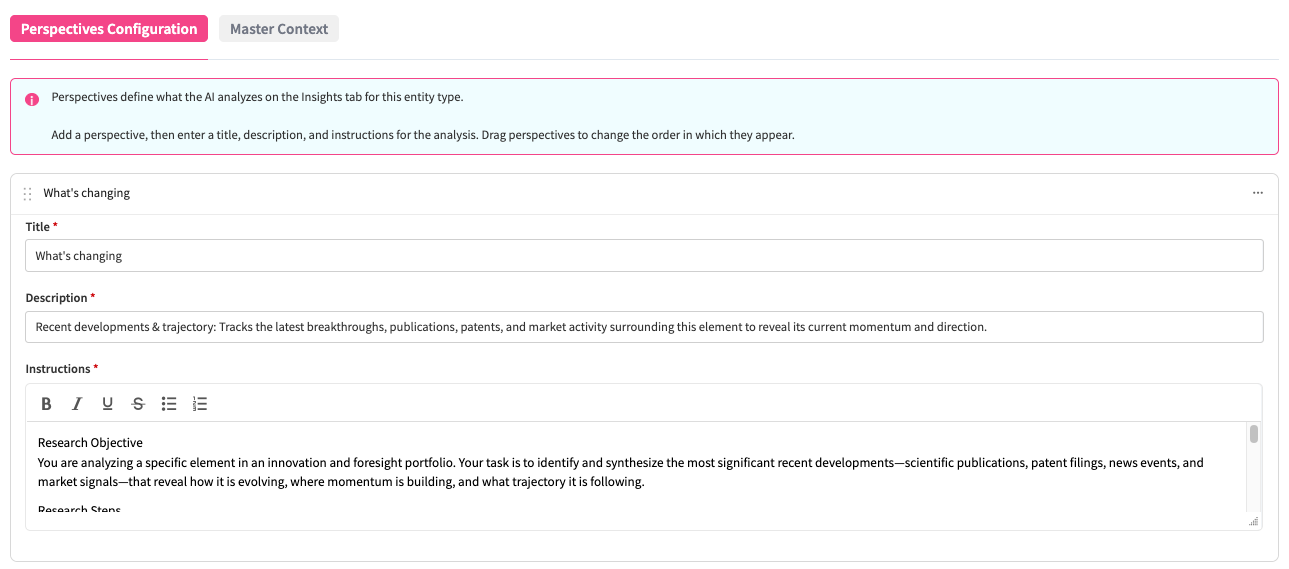
Perspectives define what the AI analyzes on the Insights tab for this entity type. When you enable Insights for the first time, three default perspectives are loaded: What's changing, What it means for us and How we could respond. You can edit or delete them, and add your own.
Each perspective consists of:
- Title - Shown as the section heading on the Insights tab.
- Description - Shown below the title on the Insights tab; also sent to the AI together with the instructions.
- Instructions - The detailed brief for the AI: what to research, which sources to focus on and how to structure the answer.
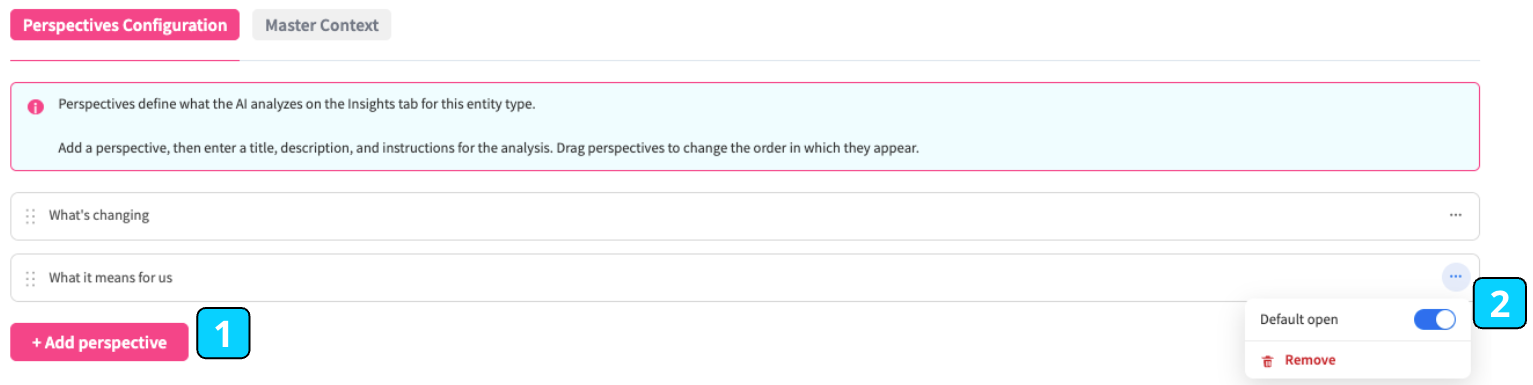
To manage perspectives:
- Click Add perspective [1] to create a new perspective, then enter a title, description and instructions.
- Use the three-dot menu [2] on a perspective card to set it as Default open (the section is expanded when users open the Insights tab) or to remove it.
- Drag perspectives by the drag handle to change the order in which they appear on the Insights tab.
- Click Save.
Perspectives apply to all users of the entity type and cannot be configured per user. At least one perspective is required. By default, up to seven perspectives can be configured per entity type; to increase this limit, contact ITONICS.
Note: Insights has no language mapping. To receive insights in a specific language, state the language in the perspective's instructions.
Add a Master Context
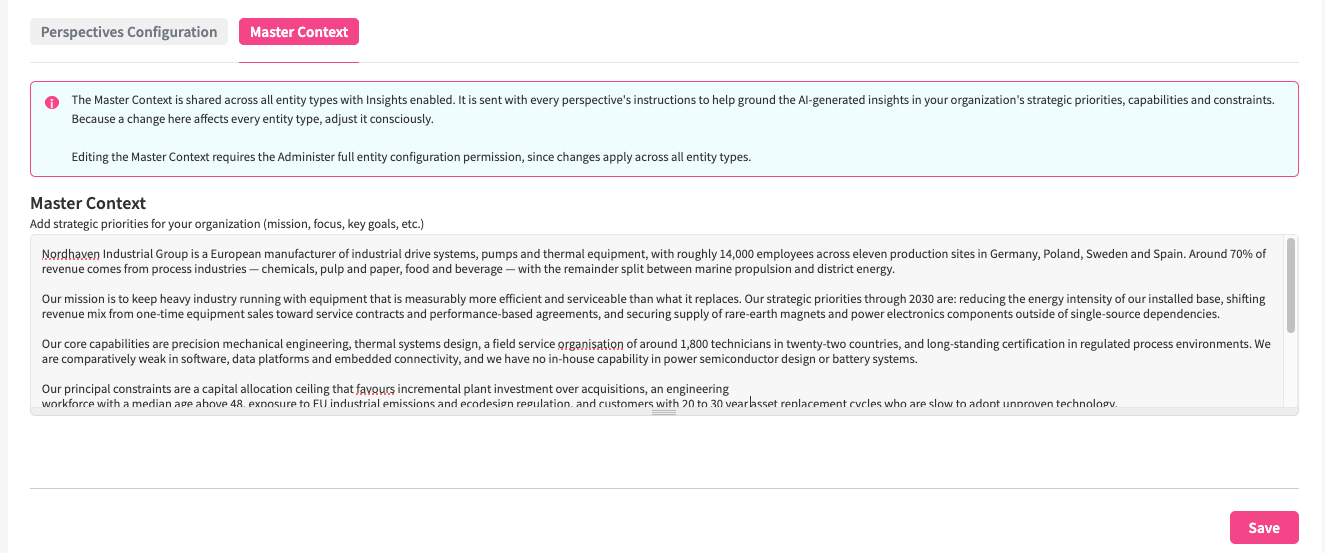
The Master Context describes your organization - for example its mission, strategic priorities, capabilities and constraints. It is sent with every perspective's instructions, so the insights are grounded in what matters to your organization.
The Master Context is shared across all entity types with Insights enabled, so a change affects every one of them. Editing it requires the Administer full entity configuration permission. Roles that can only administer specific entity types see the Master Context but cannot edit it.
When insights are re-analyzed
Insights are generated per element and shared with everyone who can view the Insights tab. A new analysis runs the next time a user opens an element's Insights tab after:
- a perspective's title, description or instructions are edited,
- a perspective is added or deleted, or
- the Master Context is changed (this applies to elements of every Insights-enabled entity type).
Changing the order of perspectives or the Default open setting does not trigger a new analysis.
Set permissions
Access to the Insights tab is controlled per entity type in the entity-specific permissions:
- View insights tab in detail page - the user can see the Insights tab.
- Edit insights tab in detail page - the user can start a new analysis manually from the Insights tab. The new results replace the previous ones for everyone who can view the tab.
Learn more about editing entity-specific permissions.
To learn how users work with the results, see Using the Insights tab on an element.