
What is it?
The Insights tab gives you an AI-generated analysis of what is happening around an element in the outside world - for example recent publications, patents, news and market activity - and what it could mean for your organization.
The analysis is split into perspectives set up by your Application Owner, such as What's changing, What it means for us and How we could respond. Each perspective gives you a summary and the sources it is based on, so you can check the original content yourself.
How does it work?
Open the Insights tab
Go to an element's detail page and select the Insights tab. The tab is available if your Application Owner has enabled Insights for the entity type and you have permission to view it.
Each perspective appears as a section showing its title and a short description of what it covers. Click a section to expand or collapse it. Inside, you find the AI-generated summary and a list of sources; click a source to open the original content in a new browser tab.
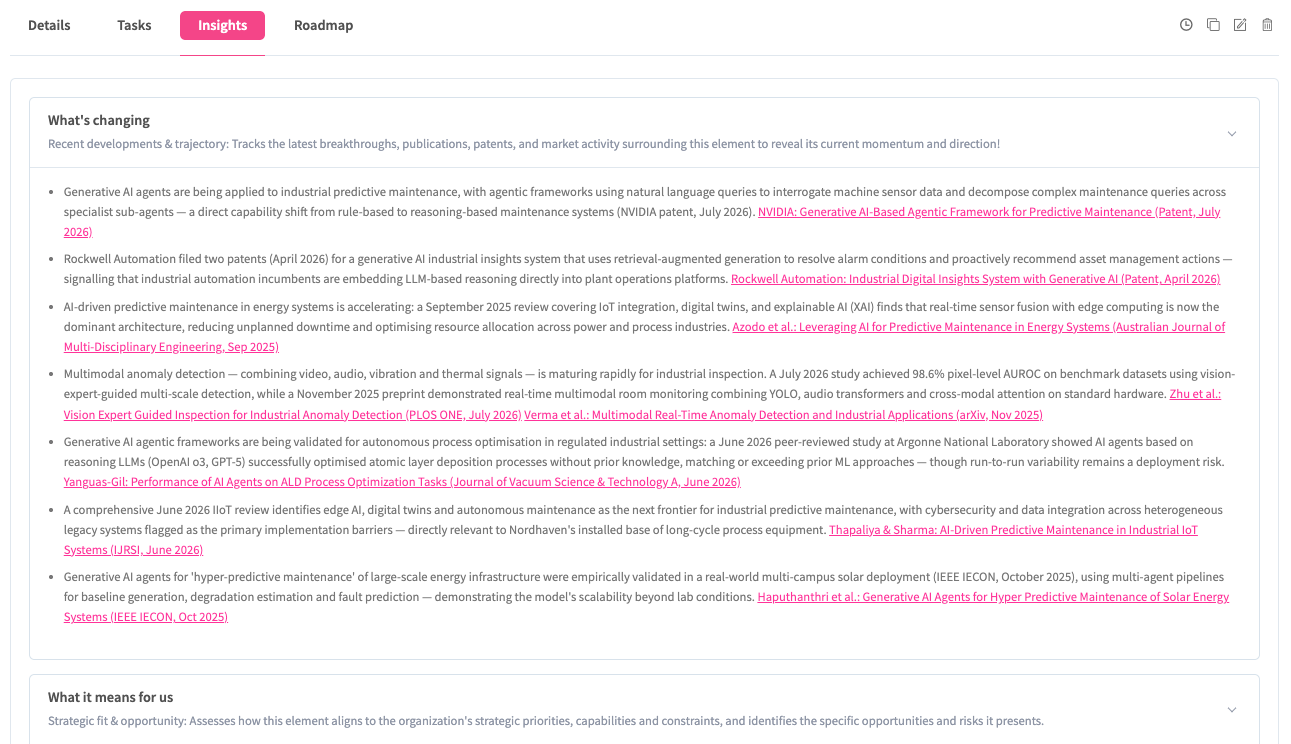
The insights are based on the element's title, abstract, description and tags. The more precise these are, the more relevant the results.
Note: If no insights could be generated, try adding more detail to the element's title, abstract, description and tags, or ask your Application Owner to refine the perspective's instructions. If the analysis fails or the service is busy, try again after a few minutes.
The first analysis
When you open the Insights tab of an element for the first time, the analysis starts automatically. This can take a few minutes. You can leave the page in the meantime - you receive an in-system notification when the insights are ready, with a link back to the element's Insights tab.

The results are generated once and shared with everyone who can view the tab.
Updated insights
If your Application Owner changes the perspectives or the organization's Master Context, the insights are analyzed again the next time the Insights tab is opened. The previous results stay visible until the new analysis is complete.
The date and time of the last analysis is shown at the bottom of the tab. If you have permission to edit the Insights tab, you can start a new analysis manually by clicking Re-analyze. The updated results replace the previous ones for everyone who can view the tab.
