
Note: The ITONICS MCP integration is available from version 3.26.0 (beginning of Q4 2026). This feature needs to be activated by ITONICS. Please contact your Customer Success Manager or Account Manager for further assistance.
The Model Context Protocol (MCP) is an open standard that enables AI applications to connect with external systems via a unified interface. Our ITONICS MCP integration leverages this, providing AI assistants with a suite of tools to search, read, create, and update your innovation content. This allows users to work directly within their preferred AI applications, eliminating the need to switch between systems.
The integration runs on top of the ITONICS REST API. Every user signs in with their own ITONICS account and approves access on a consent screen, so the permissions that apply are that user's own. See Using the ITONICS REST API to PULL and PUSH content for how authentication works.
Table of contents
- What you can do with the ITONICS MCP integration
- What it cannot do
- Before you start
- Configure which fields AI applications can access
- The connector endpoint
- Set up with Claude (worked example)
- Connect other AI applications
- Tools at a glance
- Common jobs
- Security, privacy, and complianceThe connector endpoint
- Good to know
- Troubleshooting
What you can do with the ITONICS MCP integration
Once connected, users describe what they need in plain language and the utilized model/assistant selects the appropriate tools. The integration supports:
- Discovering the structure of your system - which entity types exist, which fields each one has, which values those fields accept, and which rating criteria are configured.
- Searching and filtering elements of any entity type - by free text, field values, tags, status, creator, creation and update date ranges, campaign, and average rating per criterion.
- Reading a single element in full, including its field values and ratings.
- Creating elements as Drafts, including Submissions routed to a specific campaign. Publishing elements will be supported from 3.27.0 major release.
- Updating existing elements, field by field.
- Resolving the signed-in user, so requests such as "the trends I created" work without anyone typing a username.
- Reading who has liked or is following an element, along with the number of comments, likes, and followers.
- Reading attached files and their metadata.
Typical uses (more in the Common Uses section below) include reviewing and assessing incoming content, preparing digests and summaries, and capturing findings from external material.
What it cannot do
The scope is deliberately narrow. Understanding the boundaries up front avoids frustration:
- Nothing can be deleted. There is no delete tool for elements or any other record.
- Comments cannot be added or read. The number of comments on an element is available, but comment content is not, and the integration cannot post comments.
- Campaigns are read-only. Campaign elements can be retrieved but not created or updated. Submissions within a campaign are not affected - they can be created and updated like any other element, and creating one requires naming the campaign it belongs to.
- Administration is out of scope. User management, entity type configuration, field configuration, workflow configuration, and roadmaps are not available.
- Workflow transitions are not available. Archiving, declining, and converting elements happen in the ITONICS system.
Note: Elements can be filtered by whether they are archived, but their archived state cannot be changed.
Before you start
You'll need three pieces of information from your ITONICS tenant:
- ITONICS system URL: The identifier of your ITONICS Innovation OS, e.g. https://yourcompany.live.itonicsit.de
- OAuth Client ID: The Client ID of the OAuth client configured for your ITONICS system.
- OAuth Client Secret: A unique string used by your application to authenticate itself.
Please note:
- OAuth2 Client ID and Secret can be retrieved and rotated in the ITONICS system in the Credential Management by your Application Owner. There is one credential pair for the Authorization Code grant type per ITONICS system, shared by everyone connecting from that system. These credentials identify your system to the connector. They are not personal credentials: you still sign in with your own account during authorization, and your own permissions apply.
- Never paste your OAuth Client ID / Secret into the AI chat. You only ever enter it on the connector's own secure sign-in form.
API authentication & permissions
Authentication. The integration uses the OAuth 2.0 authorization code grant with PKCE - the per-user authentication flow described in Using the ITONICS REST API to PULL and PUSH content. You are redirected to ITONICS to sign in and approve access on a consent screen. No password is entered in the AI application or on the connector's sign-in form.
Permissions. The integration calls the REST API as the signed-in user. Alongside the standard view, create, and edit permissions for an entity type, users need the relevant API permissions:
- Access the resource {entity type} via API
- Access field properties via API
- Access entity rating info via API
- Access entity followers and likes via API
Users see exactly what their role allows in the application - no more, no less.
Field access configuration
Field access has to be configured per entity type before the integration returns anything useful. See the next section.
Configure which fields AI applications can access
What is it?
Each entity type has a Manage MCP Fields tab in its configuration, where the Application Owner selects the fields that connected AI applications may access.
Fields left unchecked are excluded from the MCP field schema and from all MCP responses. They cannot be read, but they can still be written.
When nothing is configured, only the mandatory Title and Abstract fields are exposed, together with system metadata: the element ID, status, creation and update dates, creator, and element link.
How does it work?
- Go to Settings Wheel > Entity Configuration > Entity Configuration.
- Open the entity type you want to configure.
- Open the Manage MCP Fields tab.
- Select the fields that connected AI applications may access (Title and Abstract are exposed per default).
- Save.
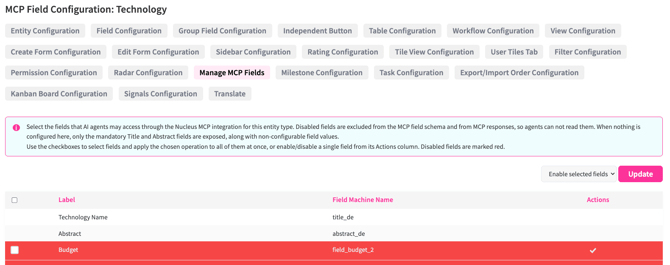
Repeat for every entity type that should be reachable. An entity type that has not been configured still appears in the assistant's entity type list, but returns only Title, Abstract, and system metadata.
Note: This is an access control in its own right, independent of role permissions. A field can be visible to a user in ITONICS and still be excluded here. Use it to keep sensitive fields out of AI applications even where the user's role would otherwise allow access.
Prerequisite: Request the MCP connection
The MCP connection must be enabled for your ITONICS system before you can connect any AI application. Contact your Customer Success Manager to request it. Once it is set up, you receive your connector URL, which you need to complete the next step.
Set up with Claude (worked example)
Claude is used here as a concrete example. The same endpoint and the same steps apply to any AI application that supports remote MCP connectors - see Connect other AI applications.
Note: ITONICS Cloud has a separate MCP connector at itonics-mcp.com, which will not work with your ITONICS Innovation OS Enterprise system. Do not search for ITONICS in your AI application's connector directory - add this integration as a custom connector. Once connected, it appears in your connector list as ITONICS Enterprise.
Add the connector
- In Claude, open Settings > Connectors.
- Add a custom connector.
- Paste the connector endpoint, including the /mcp path:
https://mcp.itonics-innovation.com/mcp - Save.
In a Claude organization, an administrator adds the connector once and members enable it individually. Each member authorizes with their own ITONICS account, and their own permissions apply.
Authorize
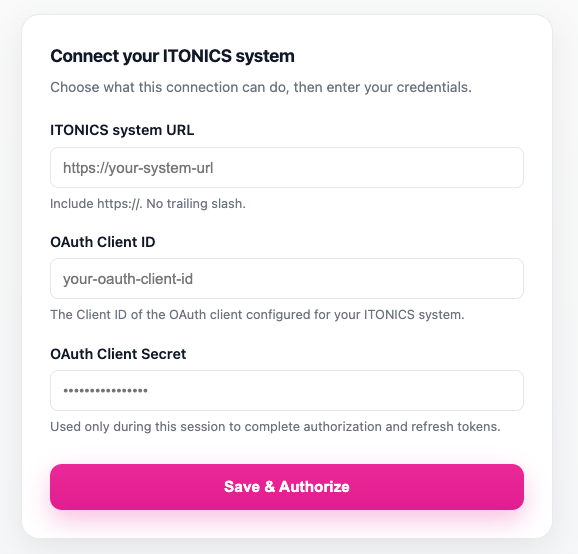
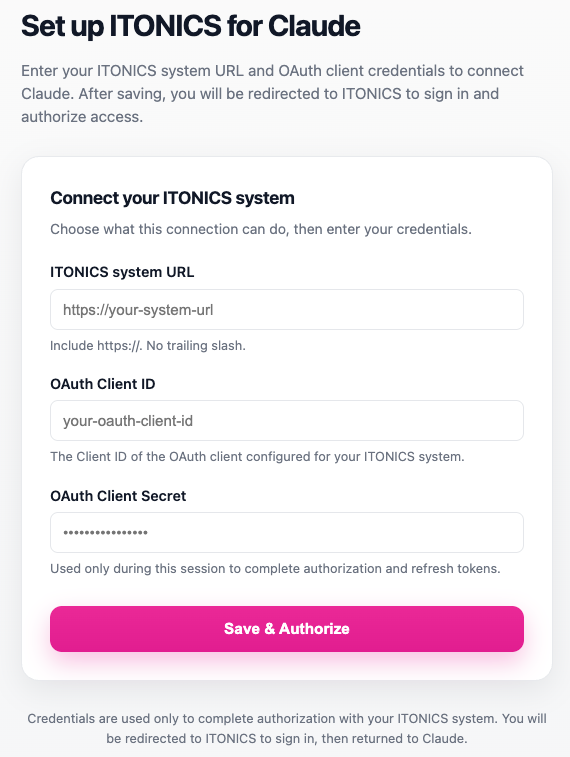
The first time the connector is enabled, Claude opens the connector's sign-in page in the browser. The page is served by the connector, not by Claude, which is why credentials never pass through the chat.
- Enter your ITONICS system URL, including https:// and without a trailing slash.
- Enter the OAuth Client ID and OAuth Client Secret provided by the ITONICS system.
- Save and authorize.
- Sign in to ITONICS and approve the request.
You are returned to Claude, connected.
Confirm the connection
Initially, ask the assistant who you are signed in as. It calls itonics_whoami and returns your username, name, email, and roles. If that works, the connection is live.
Connect other AI applications
The ITONICS MCP integration is a standard remote MCP connector and is not tied to Claude. Any application that supports remote MCP servers over OAuth connects the same way - only the menu names differ.
Note: Each AI application must be approved for your ITONICS system before it can connect. ITONICS configures this when the integration is set up. To use an additional AI application later, contact your Customer Success Manager.
- Open the application's connector, MCP server, or integration settings.
- Add a custom or remote MCP connector and paste the endpoint, including the /mcp path.
- Complete the sign-in flow in the browser and enter your system URL and OAuth credentials.
- Confirm by asking the assistant who you are signed in as.
Tools at a glance
The integration exposes six tools. Users do not need to know their names - the assistant selects them - but knowing what exists helps in understanding what an assistant can and cannot do.
|
Tool |
What it does |
|---|---|
|
|
Lists every entity type in the system with its label and which operations it supports. Entity types added in ITONICS become available immediately, without reconnecting. |
|
|
Returns the field structure of an entity type: labels, which fields are required, accepted values, segment levels, and rating criteria. For Submissions, returns the campaign-specific field set. |
|
|
Searches and filters elements of an entity type, or retrieves a single element by ID. |
|
|
Creates an element as Draft. Publishing elements will be supported from 3.27.0 major release. |
|
|
Updates fields on an existing element. |
|
|
Returns the signed-in user's profile - username, name, email, and roles. |
Searching and filtering
search_elements covers free-text search plus filters on individual fields, tags, status, creator, segment levels, and user and element reference fields. Date fields, creation dates, and update dates accept ranges. Results can be filtered by average rating against a specific criterion, and sorted by creation date, update date, title, likes, followers, or average rating. Large result sets are paginated.
Results come back with each element's ID, dates, creator, a link, and its populated fields keyed by their field labels with display-ready values.
Creating and updating
Creating an element requires at least a Title and an Abstract. Creating a Submission additionally requires the campaign it belongs to. Other fields marked required on the entity type are not enforced when creating a Draft, so an assistant can capture what it knows and leave the rest to a human. They are enforced when the element is published.
Updates change only the fields provided. When updating an element that is already published, the integration reads the element's current state first and preserves required fields that were not part of the update, so nothing is cleared unintentionally.
Common jobs
Describe the outcome you want rather than naming tools. Some frequent requests:
- Find content that needs attention. Ask for elements matching a set of conditions - type, rating, status, how long since they were touched.
- Try: "Which technologies have an average strategic relevance above 3 and haven't been updated in the last 90 days?"
- Summarize a slice of the portfolio. Have the assistant pull a filtered set and write it up.
- Try: "Summarize the trends created this quarter, grouped by segment."
- Capture findings. Hand over a report or a set of notes and have the assistant create matching elements for review.
- Try: "Create a technology element for each technology named in this report, with a short abstract for each."
- Work with your own content. Self-referential requests resolve to your account automatically.
- Try: "Show me the submissions I created in the innovation campaign and what they're rated."
Security, privacy, and compliance
- Every user authenticates individually. Each person signs in with their own ITONICS account and approves access on a consent screen - see API authentication & permissions. There is no shared service account, and one user's connection is never visible to another.
- Your own permissions apply. Requests run as you. Anything your role does not allow in the ITONICS application is not reachable through an AI assistant either.
- Writes are attributed to you. Elements created or updated through the integration record your account as creator or editor, and appear in the element timeline like any other change.
- Field-level control for system admins. The Manage MCP Fields configuration excludes unselected fields from AI applications reading these field data entirely, independently of role permissions.
- Credentials stay out of the chat. OAuth credentials are entered only on the connector's own sign-in page, served by the connector rather than by the AI application.
- Encryption at rest. Stored authorization records are encrypted.
- Nothing can be deleted. No tool deletes content.
- Content is marked as untrusted. Content retrieved from ITONICS is marked as data rather than instructions before it reaches the assistant, reducing the risk that text stored in an element is acted on as a command.
Note: Content sent to an AI application is processed by that provider under their terms. Review your organization's policy on which AI applications may be connected, and use the Manage MCP Fields configuration to keep sensitive fields out of scope.
Good to know
- You stay signed in. Authorization persists when the AI application is closed or the device sleeps. You are prompted to reconnect only if authorization is revoked or has been unused for about two weeks.
- Changes in ITONICS appear without reconnecting. A new entity type, or a change to the Manage Fields configuration, becomes available to the AI assistant without reconnecting it. A new entity type only returns Title and Abstract until its fields are selected in the Manage MCP Fields tab, so configure that first. If a change hasn't appeared, start a new conversation.
- Be specific when searching. Narrowing by entity type, status, or date range likely gives better results than a broad question.
- Keep a human in the loop. The assistant chooses which tools to call and how to interpret your request, so results depend on the model you use. A capable model handles multi-step requests reliably; a smaller or faster one may pick the wrong filter, miss results, or misread a field. We recommend creating your elements as Drafts in case you want to review them before publishing.
Troubleshooting
- The connector cannot be added. Check that the endpoint includes the /mcp path - the ITONICS connector requires it. Confirm your AI application and plan supports remote MCP connectors.
- Sign-in fails. Check the system URL includes https:// and has no trailing slash, and that the Client ID and Secret match what ITONICS provided. If the problem persists, contact your Customer Success Manager to confirm the OAuth client is configured correctly.
- An entity type is missing. You need all the relevant permissions described above for that entity type, alongside your standard view permission.
- Only Title and Abstract come back. The entity type has no fields selected in its Manage MCP Fields tab. Ask your Application Owner to configure it.
- A field cannot be read. Check whether it is selected in the Manage MCP Fields tab. Calculated fields, location search fields, table structure (fields), and fields your role cannot edit remain unavailable regardless.
- A campaign cannot be updated. Campaign elements are read-only through the integration and through the REST API.