Signals Feed discontinuation — effective 30 September 2026
The Signals Feed will be discontinued on 30 September 2026 and will no longer return results from that date onwards. Existing Signals configurations and saved filters will not carry over to the replacement feature.
The Signals Feed is being replaced by a new Insights tab, available from release 3.26.0 onwards. The new Insights tab will deliver AI-generated, perspective-based summaries that surface the most relevant external content directly in the context of each element — replacing the current unfiltered signals list. Customers on earlier versions will need to upgrade to 3.26.0 to access the new Insights tab.
For more information on what's coming, refer to the Upcoming Releases article. In case of further questions, or if the Signals Feed is business-critical for your organisation, please contact your Customer Success Manager before 30 September 2026 to discuss your upgrade path.
What is it?
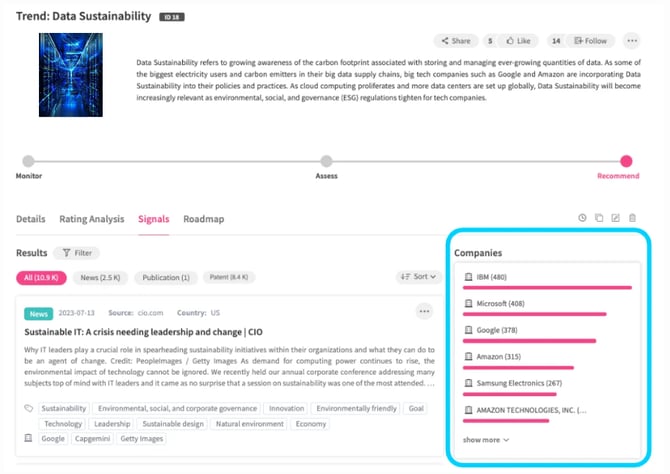
The ITONICS signals feed returns interesting news, scientific publications, patents, (and, if activated companies) based on the text and tags used on a content element. This powerful solution allows you to save time in the research phase.
It is possible to activate/deactivate the signals feed for any entity.
How does it work?
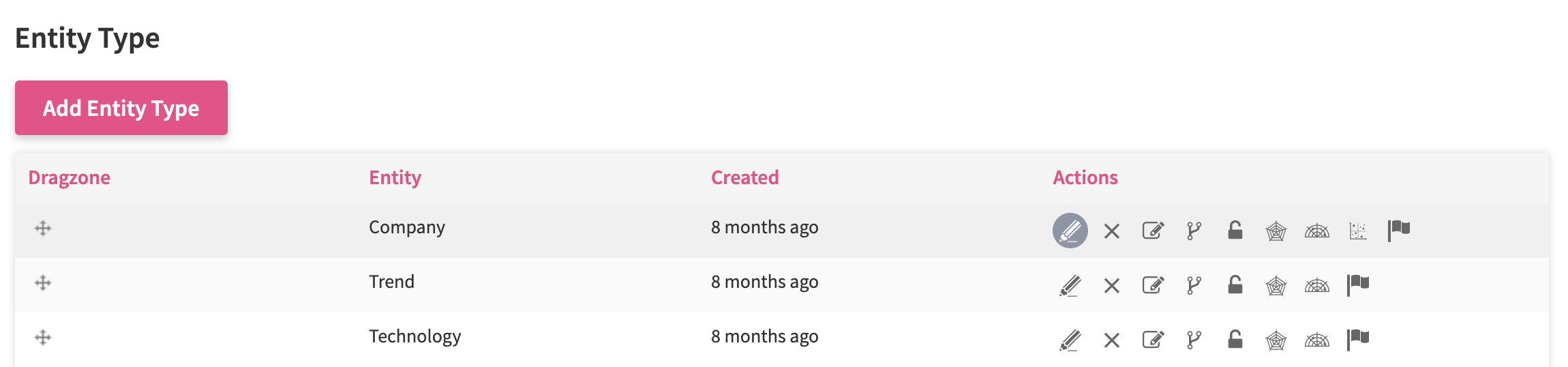
To activate/deactivate the signals feed for a particular entity, go to the Settings Wheel > Entity Configuration > Entity Configuration. Select the type of entity for that you want to activate/deactivate the signals feed and click the Pen icon to go to the edit section.
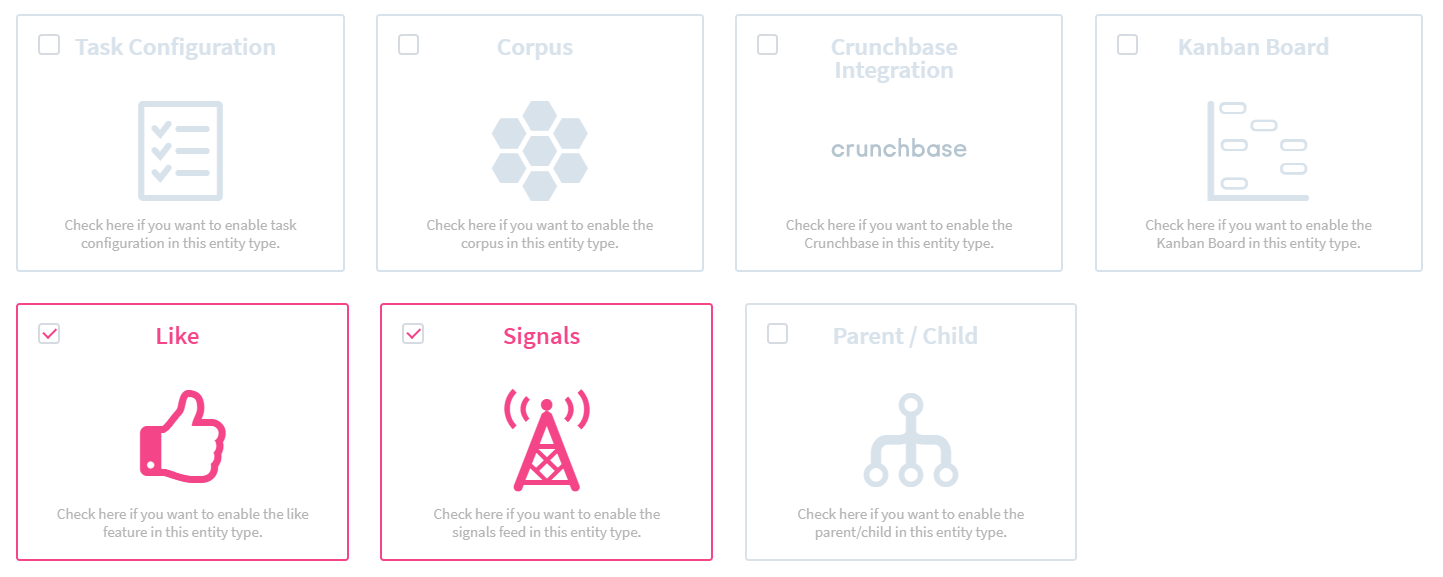
On the edit page of an entity, scroll down to the Enabled Modules/Features for this Entity section. Enable the signals feed for this entity type by selecting the checkbox. When ready, scroll down and click the Save button.
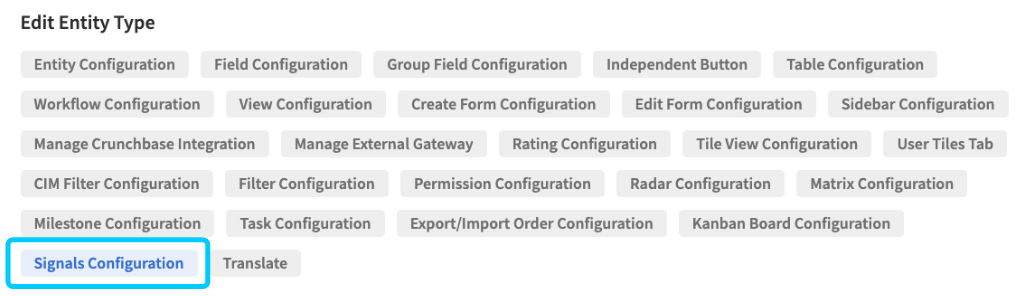
Once the signals module card has been enabled, the Signals Configuration tab becomes available.
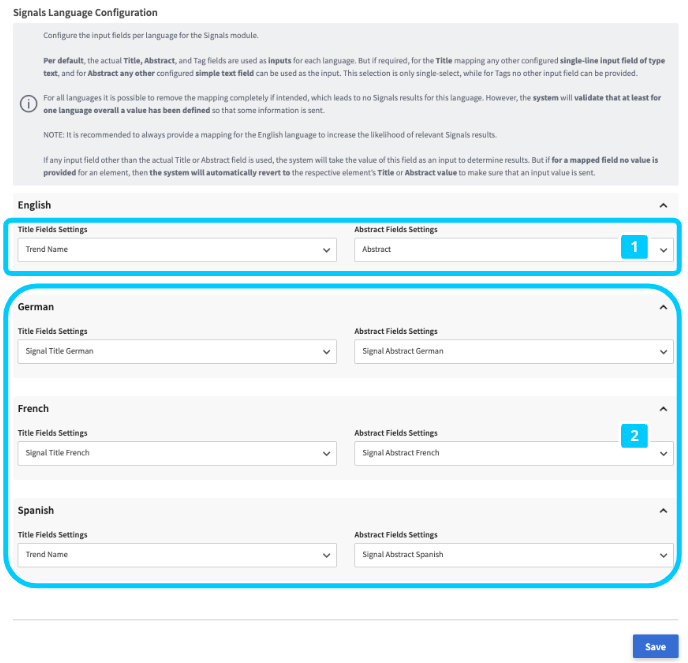
In the Signals Configuration, you can configure the mapping for the input fields for the signals feed per system language enabled. This is especially valuable for multi-language systems, in which e.g., English, German, and French, or even Spanish language content is added throughout the system. Now, per default, the system will always take the default Title field and Abstract field (1) as the basic input fields for every active language. For example, this means that if every content element in the system is created in English, the English title and Abstract will be the input data sent to each language signals pool. However, due to the input solely being in English, the likelihood of a match in the German, French, and Spanish system pool is relatively low, compared to the likely very high response of English signal results. To optimize this and ideally increase the likelihood of finding relevant signals also in other languages, ITONICS recommends the following setup as a best practice to increase the amount of signals results across different language signals sources:
Via Settings > Entity Configuration > Field Configuration, create a dedicated single-line input field with field renderer Text field (if a field validator such as Email, Number, or URL is selected, the field will not be listed) and a dedicated simple text field per system language. Note: these fields can of course be placed in a confidential tab to not distract users. In each of the fields, the translation of the actual title and abstract field into the respective language should be placed (2). Once done, by clicking Save, the Signals Configuration will immediately start using the newly assigned input fields as a basis to determine signals per language. Of course, it is possible to also utilize any other single line input field of type text for the title input, or any other simple text field for the abstract input.
Note that this configuration will especially have a high effect if the default input language of elements is other than English, since the majority of signals sources will be in English. Instead of the default title and abstract field, e.g. in German, assigning a dedicated input field with the content translated in English will significantly increase the amount of signals results.
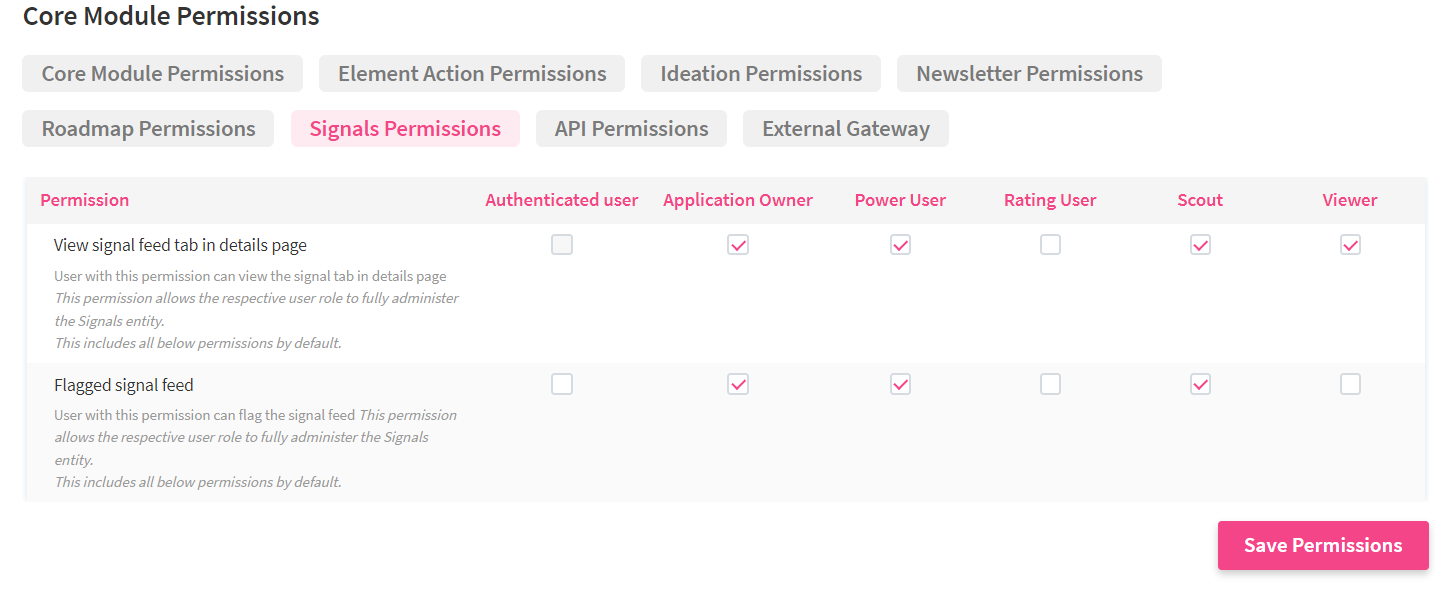
Make sure to check the signals feed permissions within the system-level permission scheme.
Once the signals feed is activated, it will start directly to return interesting news, scientific publications, patents, (and, if activated companies) on each content element, following the entity for which you enabled the signals feed.