
What is it?
The mail log is an overview of all outgoing emails that have been sent by the ITONICS platform.
How does it work?
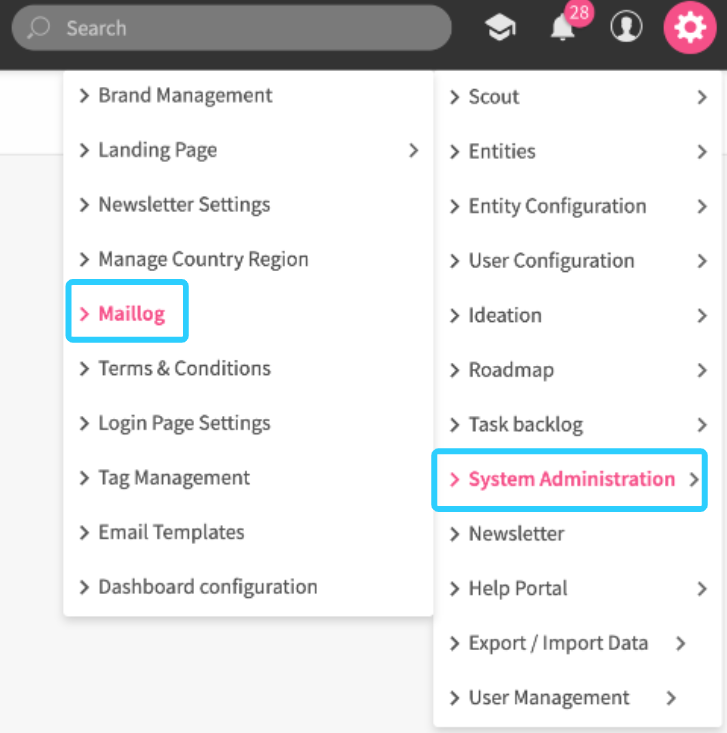
To get an overview and history of all system emails sent, navigate to the Settings Wheel > Logs > Mail Logs.
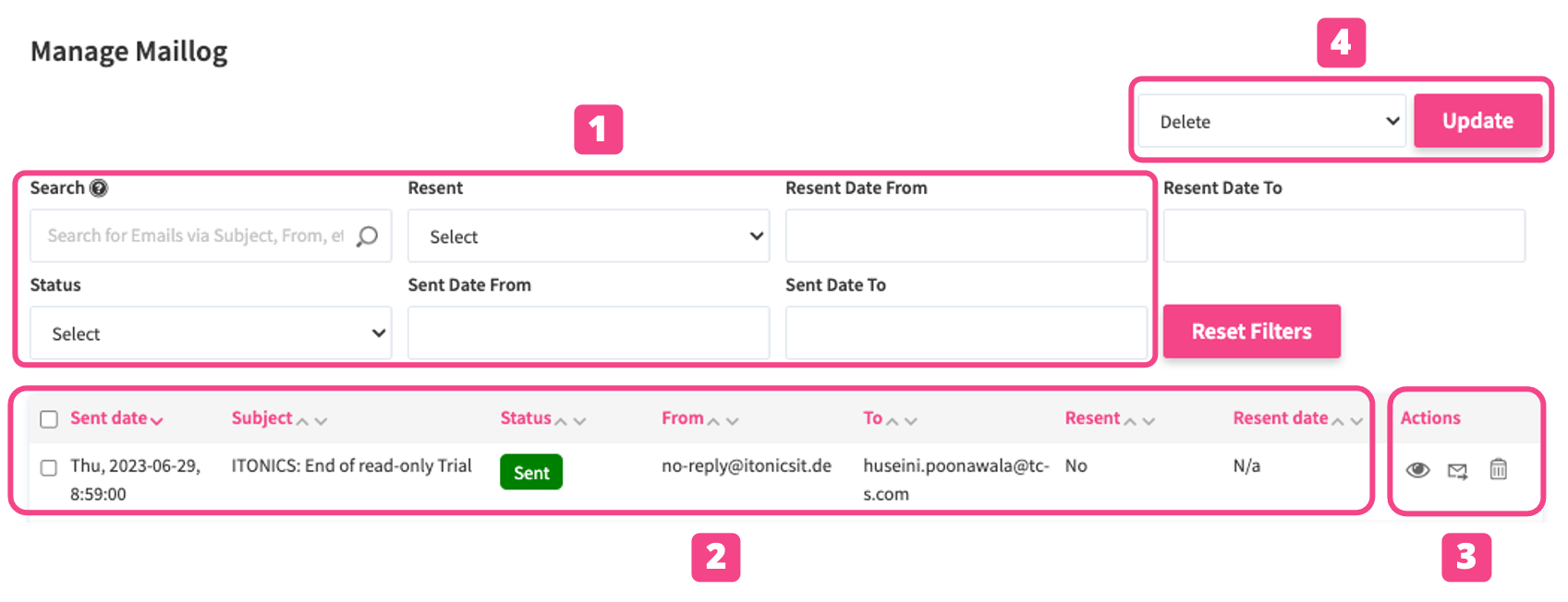
You can narrow down the results (1) by:
- searching for emails via subject, from,
- recent status
- recent date from
- recent date to
- status
- sent date from
- or sent date to
The mail log table provides an overview of (2) the Sent date, the Subject of the mail, the Status, information about sender and receiver, and whether the mail has already been resent. Besides, the mails can be managed via action buttons (3):
- Open an individual mail in a detail view by clicking on the eye icon.
- Resend an individual mail by clicking on the mail icon.
- Delete an individual mail by clicking on the trashcan icon.
You can also resend or delete a bulk of emails by checking the respective mails on the left side of the overview table, selecting either option in the dropdown, and clicking the Update button (4).
The Status column shows the delivery result of each mail:
- Sent: the mail was sent to all recipients.
- Partially sent: the mail was sent, but one or more recipient addresses were rejected.
- Failed: the mail server could not send the mail.
- Failed, retry queued: the mail could not be sent, and another sending attempt is queued.
- Not delivered: the mail was rejected before it reached the mail server.
Rejected recipients and any error returned by the mail server are recorded in the mail log. Use the Status filter to find mails that were not sent, and resend them.