
Who can use this feature?
Application Owners and user roles with the respective administration permission for integration credentials.
What is it?
The Integration Credential Management page is the central place to manage the credentials of third-party integrations activated for your ITONICS system. Permitted administrators can add, update, and test integration credentials directly and independently — for example, replacing an expired API key without raising a support request.
Important note: Currently, the credentials of the ITONICS Cloud integration are managed on this page, and further integrations, such as Kantar or Mintel, are added to this page once activated for your system. Be aware that the supported Crunchbase, Trendone, Tracxn, and Salesforce integrations are not yet covered in the Credential Management – for now the administration of their credentials remains in the backend of the application and requires support by ITONICS. Note that ITONICs plans to add these consistently over the upcoming major releases with the objective to fully provide the credential management as a self-service to clients.
How does it work?
Navigate to Settings > System Administration > Integration Credential Management. The page consists of two tabs: Credential Bindings and Audit Logs.
Credential Bindings
The Credential Bindings tab lists all credentials of the integrations activated for your system. The table shows the Integration Type (1), the masked Secret Value (2), the Status of the credential (3), and the Timestamp of the last change (4).
Click Add Credential to store a new credential for an available integration. Select the respective integration and enter the credential provided by the third-party service. After saving, only the last characters of the stored key remain visible for identification purposes.
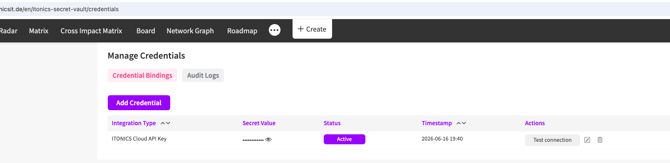
Under Actions, the following options are available for each credential:
- Test connection: Instantly verify that the stored credential is valid and the integration is reachable. This option is available for all integration types.
- Edit: Update the stored credential, e.g., after rotating the API key with the third-party provider.
- Delete: Remove a stored credential from the system.
Note: Only integrations that are activated for your system are available on this page. If you are interested in activating an additional integration, please contact your Customer Success Manager.
Audit Logs
The Audit Logs tab provides a traceable history of all credential-related activities. Each log entry lists the Integration Type (1), the Actor who performed the activity (2), the Event Type (3), the Timestamp (4), and further Details on the respective activity (5). This allows administrators to trace back at any time when a credential was added, changed, tested, or removed, and by whom.
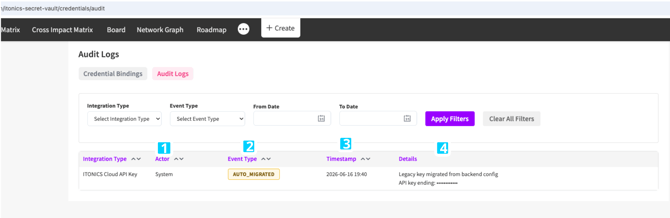
Note: The Actor of an entry can either be a specific user or the System itself, e.g., for automated events.
Use the filter section on top to narrow down the list of log entries by Integration Type and Event Type, or restrict the entries to a specific time period via the From Date and To Date fields. Click Apply Filters to update the list accordingly, or Clear All Filters to reset your selection.