
What is it?
ITONICS allows you to edit existing email notifications or add new email templates. Adding new email templates is particularly powerful when using the workflow configuration , the external gateway , or setting up date picker reminder .
How does it work?
The email template configuration can be found under the Settings Wheel > System Administration > Email Notifications > Email Template Configuration.
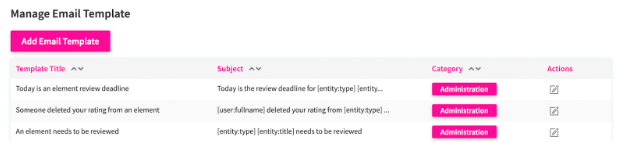
From there, you will find a list of all existing email templates in your application.
In addition, you can also add your own templates, edit our standard templates, and edit/delete custom templates.
Create an email template for the ext. gateway, workflow, or reminder
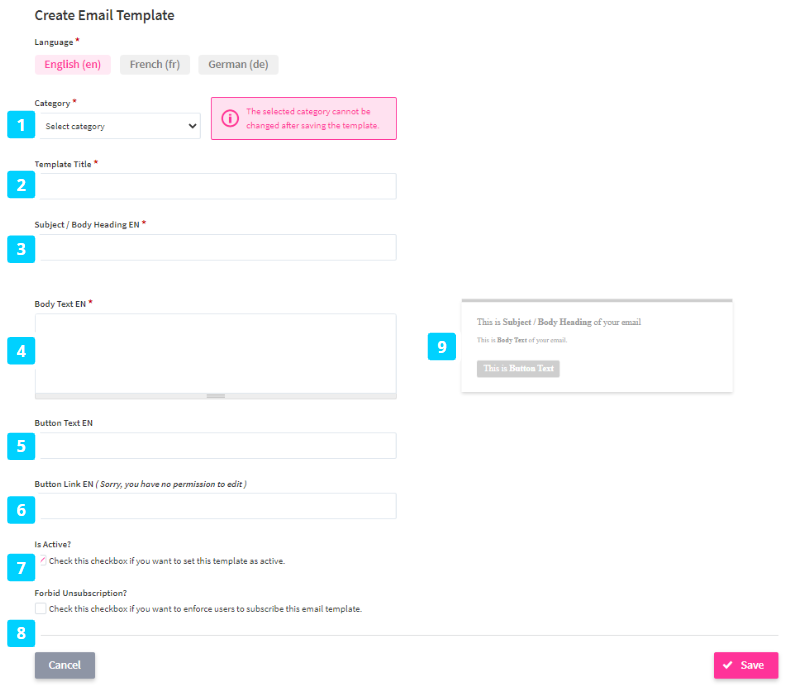
By clicking on the Add Email Template button, you will be redirected to the Create Email Template interface:
- Start and select a category for your newly created email template: If you have Workflow and External Gateway activated, you can select one of these for your template. Please note that you cannot change the selected category after saving your template. (1)
- Enter a template title: The template title will be used only in your application which means on the template overview page and under the Notifications tab on the user profile settings. (2)
- Define a Subject for your template: The subject will be shown in the email. You can use tokens in the subject to personalize your email. (3)
- Add Body Text: In some instances, it may be useful to simply add a button in your body text, rather than plain text. (4) The respective tokens will only be displayed once you have selected a category.
- Enter your Button Text. (5)
- Add a Button Link. You can select a Button link from the tokens provided, or you can paste an external URL. (6)
- Use Is active? to define whether notifications based on this template are sent. If it is unchecked, no emails or in-system notifications are sent for this template, and it is hidden from the Notifications tab of the user profile (7).
- Enforce the subscription of a specific email template using the Forbid Unsubscription option (8).
- Take a look at the example on the right to better understand how the content will be displayed in the email. (9)
Once done, do not forget to hit Save.
Edit an existing email template
Besides creating your own email templates for the workflow and external gateway, you can also edit the pre-configured emails. To do so, navigate to the Settings Wheel > System Administration > Email Notifications > Email Template Configuration.
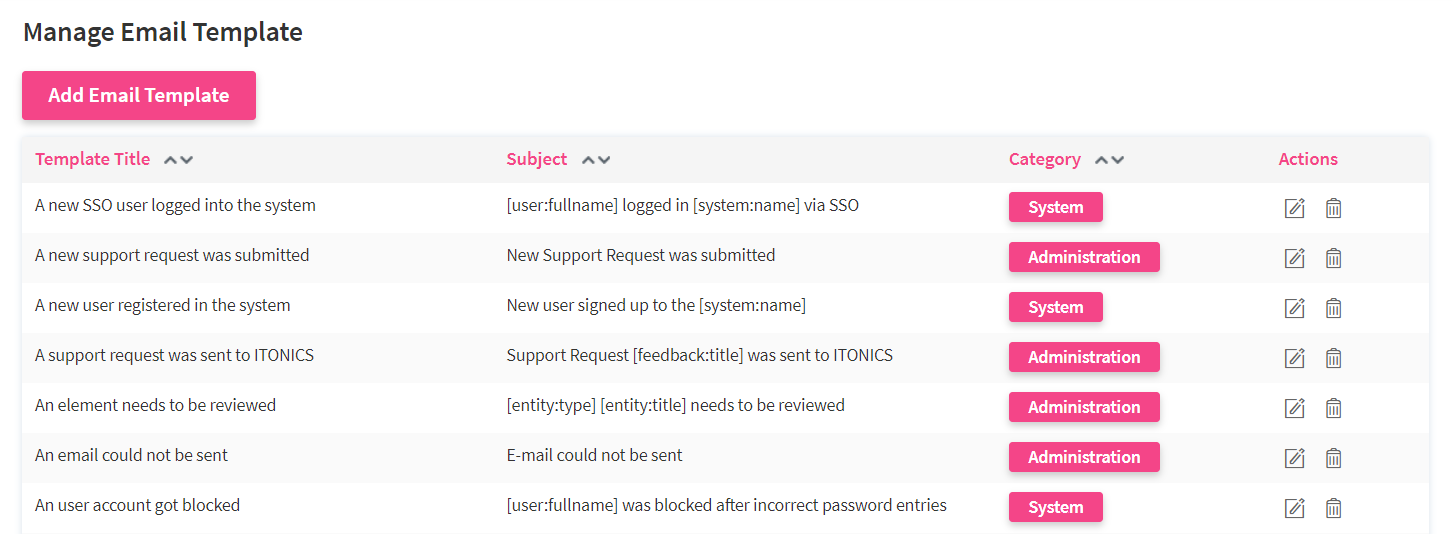
To edit a template, click on the pen icon. The following configuration options are available:
- Edit the template title, subject, text, button, button link
- Activate/deactivate an email template within the user profile notification settings.
- Forbid users to unsubscribe from an email template
- Activate/deactivate an email template to control whether its notifications are sent
