
What is it?
ITONICS allows you to connect to Mintel to pull market intelligence and consumer insights data into your application. The following steps describe how to set up each connection and configure automated data ingestion into your ITONICS instance.
Important note: ITONICS does not provide Mintel licenses, but the integration interface to connect using your own API key. This feature needs to be activated by ITONICS, please contact your Customer Success Manager for further assistance.
How does it work?
Note: To connect ITONICS to Mintel, the respective integration must be active on your instance. Please contact your Customer Success Manager if the integration card is not visible in the Entity Configuration.
Setting up the Mintel connection
The first step is to enable the respective integration module for the entity type you want to work with (e.g. a Trend or Signal entity type). Go to Settings Wheel > Entity Configuration > Entity Configuration and open the entity by clicking the pen icon.
Look for the Mintel card under the Modules/Features section and check the box to activate it. Save the entity configuration.
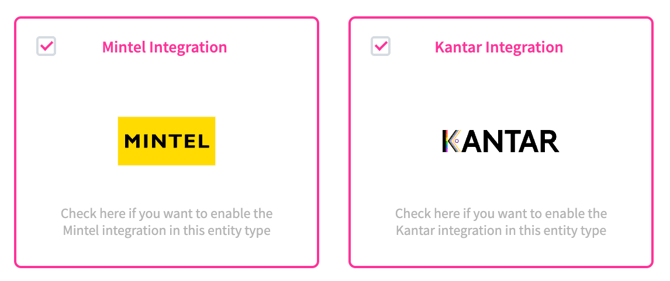
After activation, access the integration configuration by navigating to the entity type and selecting Manage Mintel Integration.
Configure field mapping
Within the Manage Mintel Integration, you will be able to use the field mapping table. The field mapping table allows you to assign vendor API fields to the corresponding ITONICS fields on the entity. Title and abstract fields are mapped by default and can be adjusted as needed.
Supported Mintel fields for mapping: title, summary, full report, URL, and tags.
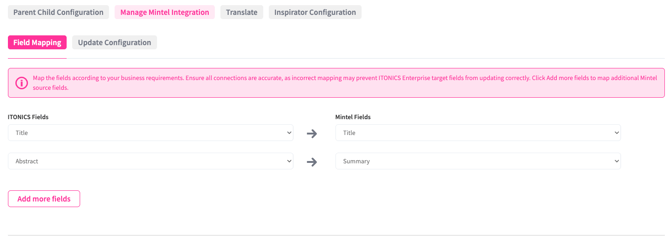
Note: ITONICS can set a default image for elements created from Mintel that have no image, provided the Profile Image field is mapped. Please contact your Customer Success Manager.
Update Configuration
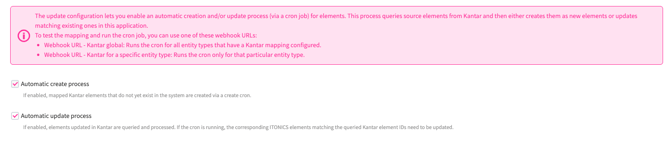
Within the Update Configuration tab, a webhook key is generated that can be used to trigger a data sync on demand. The sync pulls new and updated records from the vendor API and creates or updates the corresponding elements in ITONICS.
Note: The webhook setup and cron scheduling should be done in coordination with ITONICS. Please contact your Customer Success Manager.
Integration logs
Sync activity is logged under Settings > Logs > Integration Logs > Mintel Logs. The log tracks element creations, element updates, and webhook sync runs, including the entity type, element title, action (created/updated), and timestamp.