
Who can use this feature?
Only the Application Owner role can use this feature.
What is it?
Tracxn is one of the largest platforms for tracking startups and private companies. It is powered by a combination of human analysts and technology that scans through multiple data points to provide information categorized across industries, sectors, sub-sectors, geographies, affiliations, and networks globally.
NOTE: You are required to use your own individual Traxcn key in order to utilize this integration.
Please note: This feature needs to be activated by ITONICS. Please contact your Customer Success Manager or Account Manager for further assistance.
How does it work?
Setting up the Traxcn-ITONICS connection
Choose the Entity that you would like to enrich using the Traxcn integration. Go to Settings > Entity Configuration > Entity Configuration and open the Entity by clicking the Edit (pen) icon. Look for the Tracxn card under the Modules/Features section and check the box in the left corner of the module card. (Please contact your Customer Success- or Account Manager if the card is not visible)
When the checkbox is checked, the card should change the layout color from light grey to the system color. Do not forget to press the save button at the bottom of the page.

Step 2: After enabling the feature you can now configure it according to your preferences. To access the Tracxn Configuration click on the respective Entity (e.g. Company) and go to Manage Tracxn Integration.
When you start working with the integration, determine which ITONICS field has to be enriched, and determine which Traxcn information will be required. Use the field mapping in the following way:
- Choose the respective ITONICS Field (1)
- Choose the Tracxn Field to enrich the ITONICS Field (2)
- Remove the field mapping (3)
- Add more fields to the mapping (4)
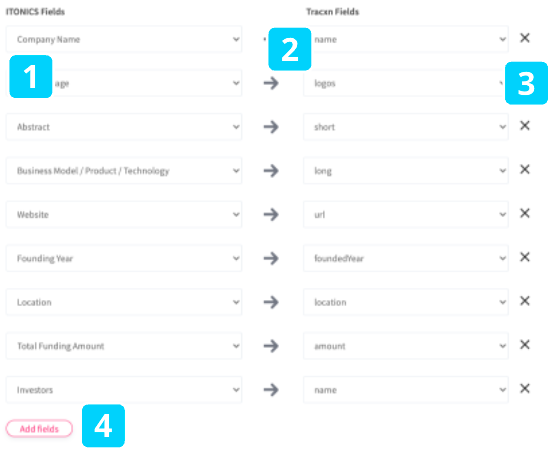
ITONICS recommends the following mapping for a correct integration:
| ITONICS Field | ITONICS Field Type | Tracxn-Field | Example |
| Company Name | Single Line Input Field | name | ITONICS |
| Profile Image | Single Line Input Field with URL Validator | logos | https://res.cloudinary.com/crunchbase-production/image/upload/c_lpad,h_170,w_170,f_auto,b_white,q_auto:eco,dpr_1/v1488216205/forhvpqdjetyo4ymgzi7.jpg |
| Abstract | Multi-Line Input Field | description_short | Enterprise End2End Innovation software. From trends and technologies to ideation and roadmapping. All on one platform! |
| Description | RTE Field | description_long | ITONICS is a software company with a focus on collaborative enterprise software solutions in strategic foresight, trend, technology, innovation, ideation and portfolio management. |
| Website | Single Line Input Field with URL Validator | website_url | https://www.itonics-innovation.com/ |
| Tags | Tag field | practiveAreaList → name | Communities, Consulting, Software |
| Location | Location field | location | Nuremberg, Bavaria, Germany |
| Founded year | List field | foundedYear | 2009 |
| Total Funding Amount | Single Line Input Field with Number Validator | totalMoneyRaised → amount | 2.200.000 |
| Investors | Term Search Field | investorList →name | John Doe |
Not in the ITONICS Blueprint. Fields have to be configured via Field Configuration first.
| ITONICS Field | ITONICS Field Type | Tracxn-Field | Example |
| Number of Funding Rounds | Single Line Input Field with Number Validator | fundingInfo → numberOfFundingRounds | 3 |
| Funding Rounds | Term Search Fields | fundingInfo → name | Series A, Series B, Seed |
| Key People | User Search Fields (Hybrid) | employeeInfo → name | Michael Durst |
| Competitor | Term Search Field | competitor | Hype |
| Number of employees (numeric) | Single Line Input Field | latestEmployeeCount → value | 145 |
Remember to hit the save button at the bottom of the page once you have finished configuring the field mapping.
Note: To prevent overwriting issues, ITONICS recommends to not configure the same fields within the mapping configuration of the Crunchbase, Tracxn, Trendone, respectively Salesforce, if they are utilized simultaneously for the same entity type.
Creating content elements from Traxcn
Once Tracxn was activated for a certain element you have now two options to create elements of this entity type:
- Create with Tracxn allows you to search and create a specific element based on the defined data mapping. (1)
- Create from Scratch allows you to create the element manually in the usual way (2)
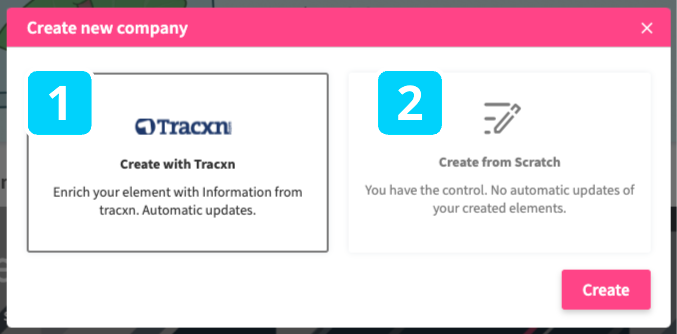
If you decide to go with Tracxn simply click on the Tracxn tile and hit the create button. A search bar appears which allows you to enter a URL (e.g. itonics-innocation.com) for a specific element in Tracxn. A suggestion bar indicates the search results dependent on your input.
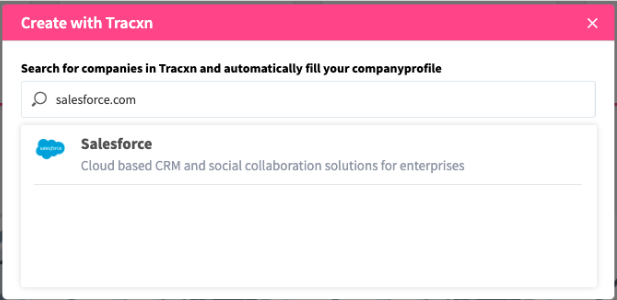
Once you choose the respective result, you are forwarded to the creation page of the element. The mapped fields are already pre-filled with the content of Tracxn. You can now enrich other fields manually or directly save the new element.