
What is it?
To create and enrich company elements smoothly, ITONICS offers a native integration with Crunchbase. Crunchbase is a platform for finding business information about private and public companies, such as company descriptions, locations, founding details, founders, company size, and company status.
Note: This feature needs to be activated by ITONICS, including the Crunchbase API key. Contact your Customer Success Manager for further assistance.
How does it work?
Setting up the Crunchbase-ITONICS connection
The first step is to enable the Crunchbase module for a specific entity you want to work with. Go to Settings Wheel > Entity Configuration > Entity Configuration and open the entity by clicking the edit (pen) icon.
Look for the Crunchbase card under the Modules/Features section and check the box on the left corner of the module card. (Contact your Customer Success Manager if the card is not visible). When the checkbox is marked, the card should change the layout color from light grey to the system color. Don’t forget to press the Save button at the bottom of the page.

After enabling the module, you can configure it according to your preferences. To access the Crunchbase Configuration, click on the respective entity (e.g. Company) and go to Manage Crunchbase Integration.
The remaining setup step is the field mapping, which defines which Crunchbase data populates each ITONICS field.
- Choose the respective ITONICS Field (1).
- Choose the Crunchbase Field to enrich the ITONICS Field (2).
- Remove the field mapping (3).
- Add more fields to the mapping (4).
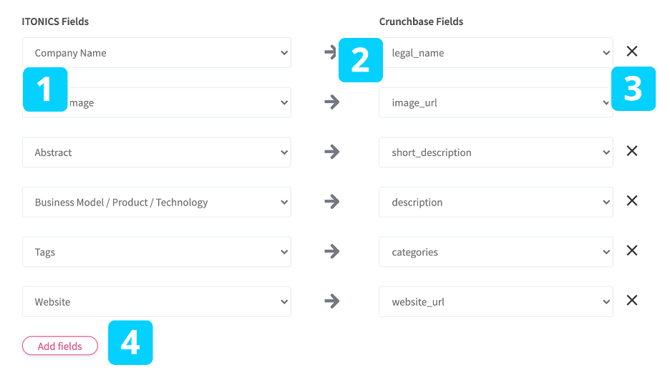
ITONICS recommends the following mapping for a correct integration:
|
ITONICS Field |
ITONICS Field Type |
Crunchbase-Field |
Example |
Available with the ITONICS Key |
|
Company Name |
Single Line Input Field |
legal_name |
ITONICS |
Yes |
|
Profile Image |
Single Line Input Field with URL Validator |
image_url |
https://example.com/company-logo.png |
Yes |
|
Abstract |
Simple Text Field |
short_description |
Enterprise End2End Innovation software. From trends and technologies to ideation and roadmapping. All on one platform! |
Yes |
|
Business Model/Product/Technology |
Rich Text Field |
description |
ITONICS is a software and consulting company with a focus on collaborative enterprise software solutions in strategic foresight, trend, technology, innovation, ideation and portfolio management. |
Yes |
|
Website |
Single Line Input Field with URL Validator |
website_url |
https://www.itonics-innovation.com/ |
Yes |
|
Tags |
Tag Field |
categories |
Communities, Consulting, Software |
Yes |
|
Location |
Location Search Field |
location_identifiers_location |
Chicago, Illinois, United States, North America |
Yes |
Please configure the following fields beforehand in the field configuration:
|
ITONICS Field |
ITONICS Field Type |
Crunchbase-Field |
Example |
Available with the ITONICS Key |
|
Phone Number |
Single Line Input Field |
phone_number |
(650)601-5000 |
Yes |
|
Contact E-Mail |
Single Line Input Field |
contact_email |
support@itonics-innovation.com |
Yes |
|
Number of Founders |
Single Line Input Field |
num_founders |
3 |
Yes |
|
Founded on |
Single Line Input Field with Number Validator |
founded_on |
2009 |
Yes |
|
Created at |
Date Picker |
created_at |
01.06.2015 (in Crunchbase) |
Yes |
|
Founders |
Term Search Field |
founder_identifiers |
Steve Jobs, Ronald Wayne, Steve Wozniak |
Yes |
Crunchbase List Fields are mapped according to the following logic:
- Mapping an ITONICS Single Line Input Field to a Crunchbase List Field will list all values comma-separated in the ITONICS system.
- Mapping an ITONICS Simple Text Field to a Crunchbase List Field will list all values comma-separated in the ITONICS system.
- Mapping an ITONICS Rich Text Field to a Crunchbase List Field will list all values comma-separated in the ITONICS system.
- Mapping an ITONICS Term Search Field to a Crunchbase List Field will create a term for each value in the ITONICS system.
- Mapping an ITONICS Tag Search Field to a Crunchbase List Field and create a tag for each value in the ITONICS system.
Once you have configured the field mapping successfully, please do not forget to hit the Save button at the bottom of the page.
Scheduled updates keep element data current with Crunchbase. In the Update Configuration section of the Manage Crunchbase Integration tab, select Automatic update process and click Save. Elements in Draft, Review, and Published status are included in the update process.
Note: Automatic updates overwrite mapped fields with the current Crunchbase values, including any values that were edited manually in ITONICS.
Note: If company information already exists when Crunchbase is activated with synchronization enabled, those records are also updated by the synchronization for all mapped fields, provided the company website domain is filled in.
Creating content elements from Crunchbase
When the Crunchbase module is active for an entity, two options are available for creating elements of that entity type:
- Create with Crunchbase allows you to search and create a specific element based on the defined data mapping. (1)
- Create from Scratch allows you to create the element manually in the usual way (2)
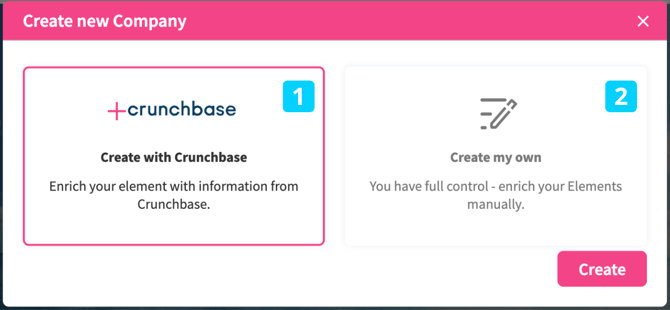
If you decide to go with Crunchbase simply click on the Crunchbase tile and hit the create button. Once clicked, a search bar appears which allows you to query for a specific element in Crunchbase.
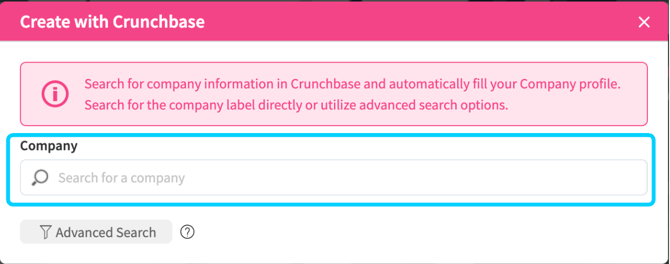
By providing a search term to query for a specific title of a startup / company, a suggestion bar indicates the search results.
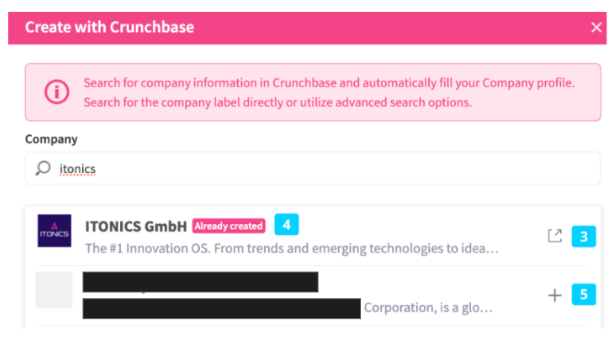
Any existing element matching the search term can be opened in a new tab via the button (3) and is marked with the Already created tag (4). To create a new element for a non-existing result, click on the + icon (5). Once the result has been chosen, you are then forwarded to the creation page of the element. The mapped fields are already pre-filled with the content of Crunchbase. You can now enrich other fields manually or directly save the new element.
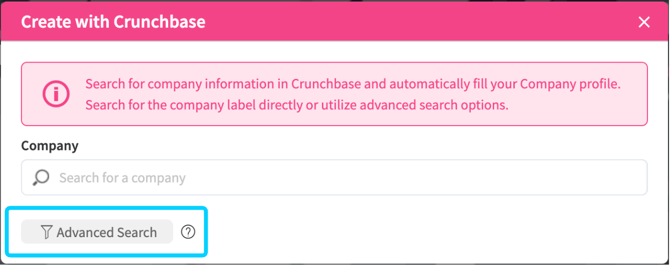
Besides, you can use Advanced Search within the same creation window to find the company you want to create an element for. Instead of typing a company name, you can apply filters such as company size, foundation year, or keywords in the company's Crunchbase description. The matching companies are shown as suggestions, and you create an element for each company you select. Clicking on the button will open a new filter section with these predefined filter fields.
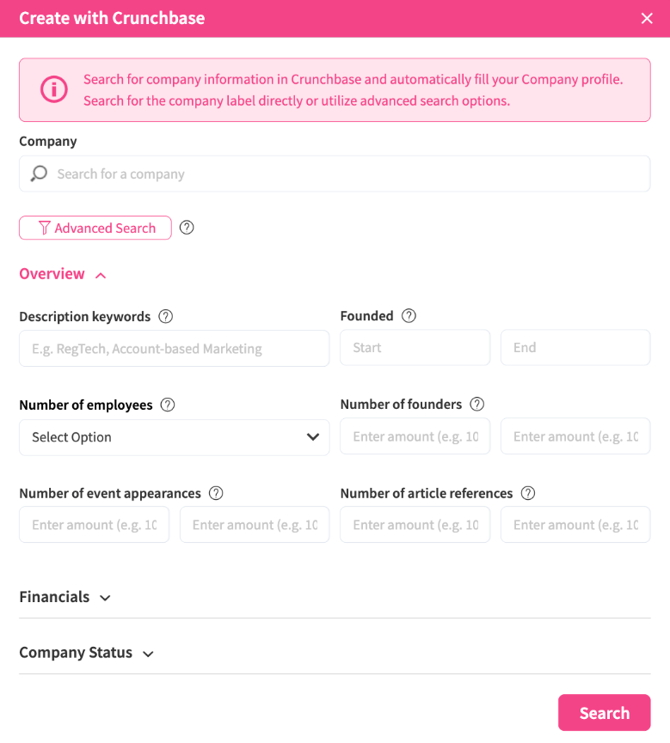
The filters are divided into general Overview filters covering keywords in the company's Crunchbase description, its foundation year, and more. Further, there is a Financials section covering properties such as the number of exits and acquisitions, as well as Company Status filters, such as a startup's IPO status.
Note: Filter criteria are always combined with AND. A company must match every criterion entered to appear in the results.
Note: The filter properties available in the advanced search are limited to those included in the Crunchbase Bronze license package, which excludes most financial filters.
In the example below, companies matching the keyword "Agentic AI" in their Crunchbase description are shown as suggestions (maximum 50 results). To create an element for a suggested company, click the + icon (5), which opens the create form for that company in a new tab. Each company is created individually. To start over, click the Reset Filters button (6).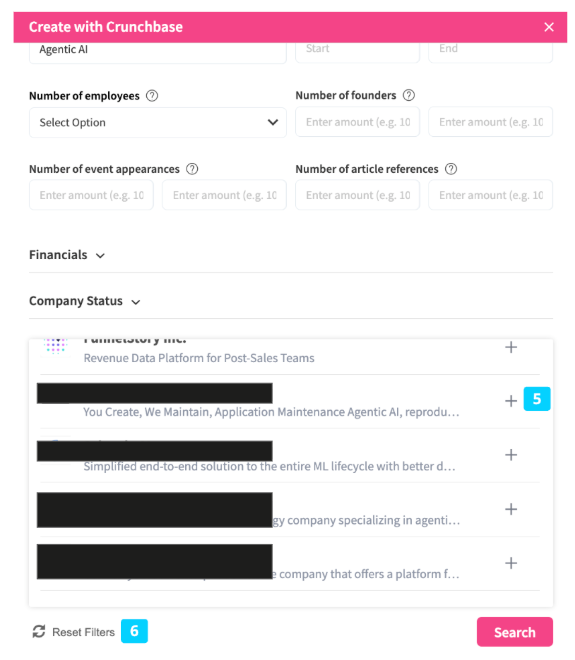
Note: In line with Crunchbase's data licensing terms, information sourced from an activated Crunchbase integration is not included in export files.
Note: To prevent overwriting issues, avoid mapping the same ITONICS field in more than one integration — Crunchbase, Tracxn, Trendone, or Salesforce — when several are active on the same entity type.