
What is it?
Sometimes you need a figure on a higher-level element that is based on the values of its child elements. For instance, a project breaks its costs down across several activities, and you want the project to show the total cost of all activities. Or a portfolio element groups several projects, and you want to report on their combined budget in charts, exports or via the API.
Numeric aggregation calculates such values automatically. For each aggregation you set up, the system creates an aggregated field on the parent entity type. It keeps that field up to date based on numeric fields of the linked child elements. You can choose between Sum, Average, Minimum, Maximum and Count.
Note: Numeric aggregation is part of the parent-child feature, which needs to be enabled on the parent entity type first. Refer to the article on configuring a parent campaign page and the idea intake for how to set up a parent-child relation.
How does it work?
Enable numeric aggregation
- Navigate to Settings Wheel > Entity Configuration > Entity Configuration and click the pen icon of the parent entity type.
- Open the Parent-Child Configuration tab.
- On the Overview sub tab, check Enable aggregation of child element values and click Save.
- Open the Numeric Aggregation sub tab that appears next to the Overview sub tab.
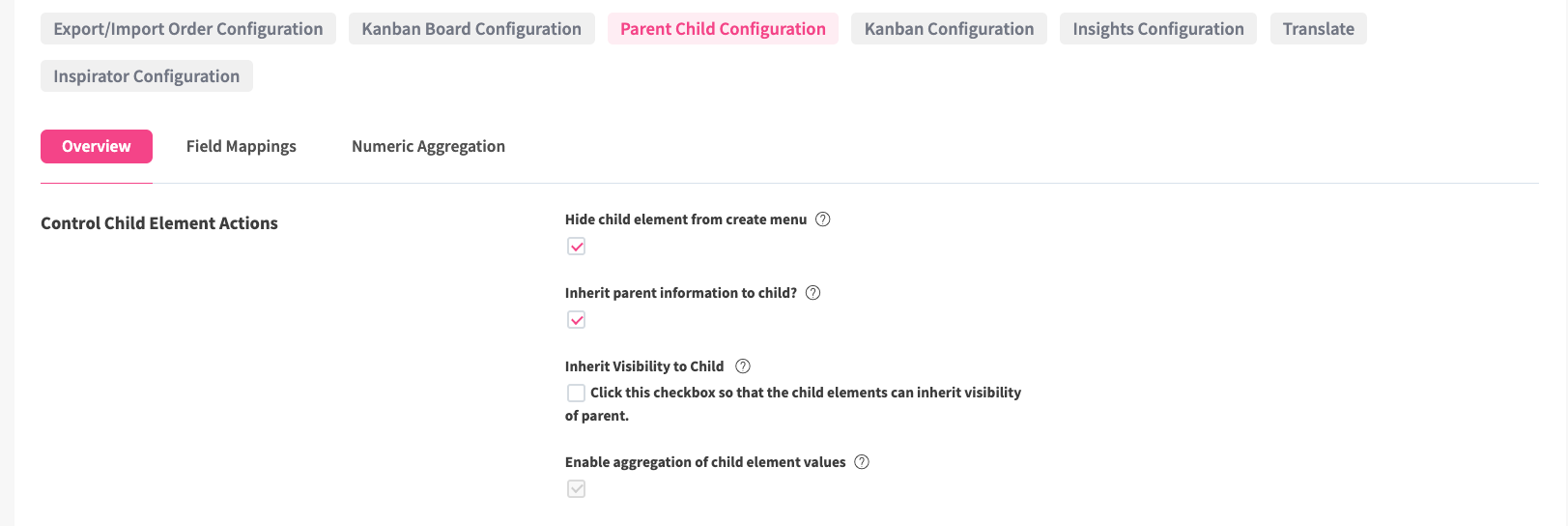
Note: The checkbox cannot be unchecked while aggregations exist. To disable numeric aggregation, delete all aggregations first.
Add an aggregation
- Enter a Field label. This is the name of the aggregated field that is created on the parent entity type, e.g. Total activity costs.
- Select an Aggregation mode. Sum is selected by default.
- Select one or more Child source fields. This is not required for the Count mode.
- Click Add aggregation.
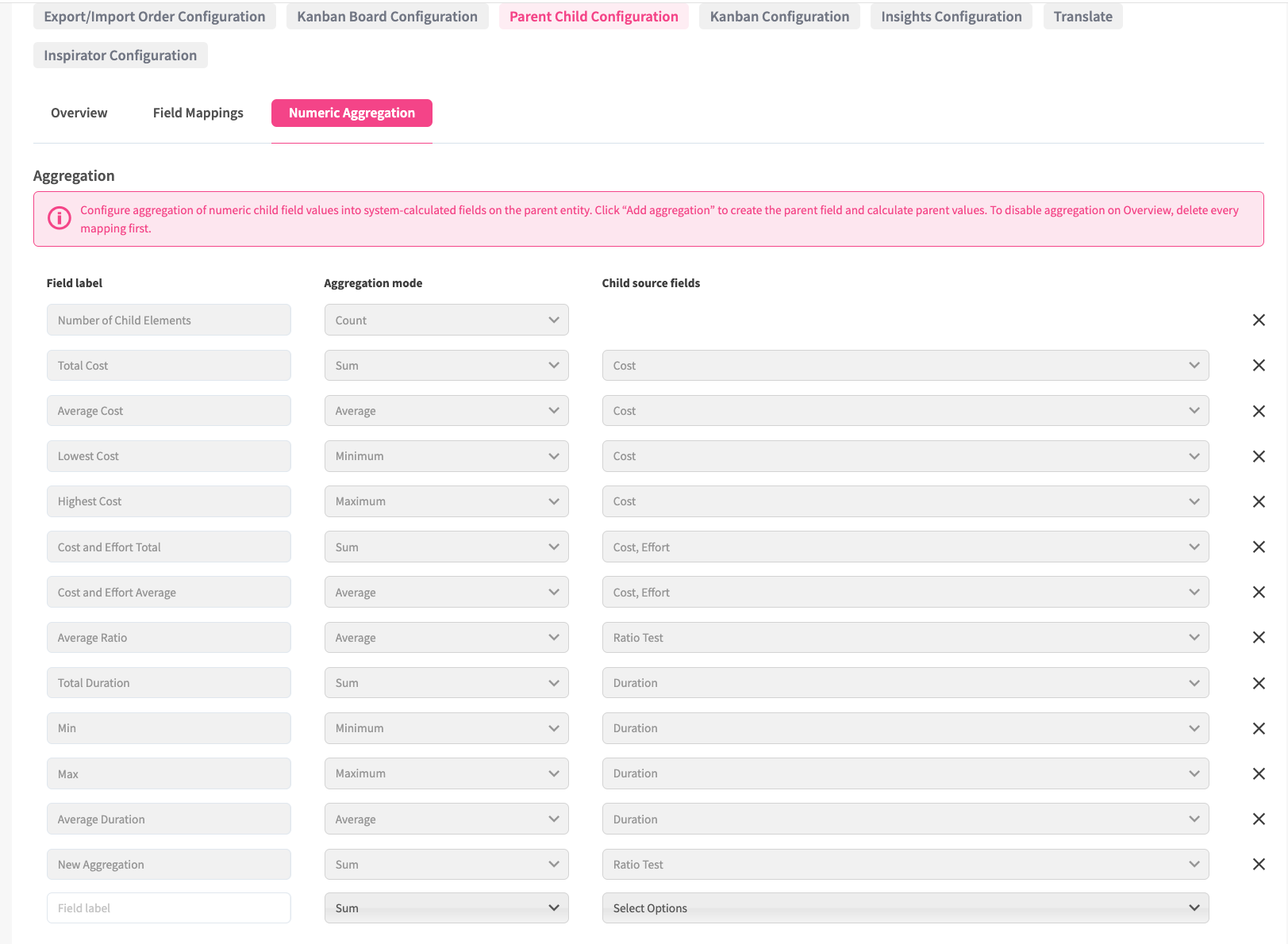
The system creates the aggregated field on the parent entity type and calculates its values for all existing parent elements in the background. You can add as many aggregations as you need.
The following child fields can be selected as source fields:
- Single line input fields of type number (excl. multi-select number fields)
- Calculated fields
- Fields that calculate the time difference between two dates
Aggregated fields cannot be selected as source fields for other aggregations.
Note: The aggregation mode and source fields cannot be changed once an aggregation is created. To change them, delete the aggregation and create a new one. You can change the field label and its translations in the Field Configuration of the parent entity type.
How are the values calculated?
|
Mode |
Result |
|---|---|
|
Sum |
Total of all values |
|
Average |
Sum of all values divided by the number of values |
|
Minimum |
Lowest value |
|
Maximum |
Highest value |
|
Count |
Number of child elements linked to the parent element, regardless of their field values |
The following rules apply to all modes except Count:
- If you select more than one source field, all values of all selected fields across all child elements are pooled into one list before the mode is applied.
- Empty values are excluded from the calculation, including from the number of values used for Average. Default values configured on child number fields are not used for aggregation.
- Zero and negative values are valid values and are included.
- Undefined values, e.g. a child calculated field dividing by zero, are excluded.
All results are rounded to two decimal places. If none of the child elements has a value, the aggregated field stays empty. Count shows 0 for a parent element without child elements.
Example: A project has three activities as child elements, with a Cost field and an Effort field:
|
Child element |
Cost |
Effort |
|---|---|---|
|
Activity 1 |
10 |
5 |
|
Activity 2 |
20 |
(empty) |
|
Activity 3 |
(empty) |
15 |
|
Mode |
Source field: Cost |
Source fields: Cost + Effort |
|---|---|---|
|
Sum |
30.00 |
50.00 |
|
Average |
15.00 (30 ÷ 2 values) |
12.50 (50 ÷ 4 values) |
|
Minimum |
10.00 |
5.00 |
|
Maximum |
20.00 |
20.00 |
|
Count |
3 |
3 |
With two source fields, Average is calculated across the four pooled values. It is not an average per child element.
When are the values updated
Aggregated values are recalculated automatically in the following cases:
- A child element is created or deleted.
- A source field value changes on a child element.
- A child element is linked to or removed from a parent element. If a child element moves to a different parent element, both parent elements are updated.
The recalculation runs in the background, so it can take a moment until the updated value is shown everywhere.
Using the aggregated field
The aggregated field behaves like any other calculated field. It cannot be edited manually in create or edit forms, bulk actions, Excel import or the API.
To show it on the detail page of the parent element, position it in the View Configuration of the parent entity type. It is also available in the following places:
- As a column in the Explorer via Manage Columns, and in the Grid view
- As a Matrix axis, a Board KPI, and in Dashboard charts
- In API responses and in Excel and PDF exports
- In formulas of other calculated fields on the parent entity type, e.g. total activity costs multiplied by 1.1
The aggregated field is not available in the Global Field Manager and cannot be added to other entity types.
Visibility of aggregated values
Aggregated values are always calculated across all linked child elements. This includes child elements that a user is not allowed to see, and fields placed on a Confidential tab of the child entity type. To restrict who can see an aggregated value, place the aggregated field on a Confidential tab of the parent entity type.
Delete an aggregation
- On the Numeric Aggregation sub tab, click the delete icon of the aggregation.
- Confirm the deletion.
The aggregated field and all its values are permanently removed from the parent entity type.
Deleting is blocked while the aggregated field is used in a calculated field formula or a visualization configuration, e.g. a Matrix axis or a Dashboard chart. Remove these references first.
Note: Child fields used as source fields cannot be disabled, deleted or switched to multi-select while an aggregation uses them.